Showing posts with label Virtualization. Show all posts

Tuesday, December 27, 2011

Hyper V VM failed to set/change partition property error

Tried setting up a virtualized web farm in machine which is running Intel i5 with Windows Server 2008 R2 standard RTM. Hyper V manager refused to start a virtual machine in a brand new host machine. It has got enough of memory and CPU cores to start the virtual machine.

It keep on showing VM could not initialize < VM Guid > and "failed to set/change partition property" in event viewer.

After an hour of googling found a KB 2517374 article with reference about Intel AVX technology in Sandy bridge processors and some interesting stuff from Jeff Woolsey's Chicken and egg case.

The base funda is Intel's sandy bridge processors were released after the release of Windows Server 2008 R2 RTM, so it doesn't contain the bits to leverage new bells and whistles. As there is a slight change in processor architecture itself, it refuses to start the virtual machines.

Either upgrade to Service pack 1 to make use of Intel AVX in host and guest or install the above mentined hotfix to disable the AVX for the guest OS's

Upgrade to service pack 1 and enjoy the power of AVX(high performance floating point calculations) in both of your guest and host.

Friday, November 20, 2009

How to share files in Sun Virtual Box ?

Shared folders allow you to access files of your host system from within the guest system, much like ordinary shares on Windows networks Sharing folders in Microsoft virtual PC is much simpler than in virtual Box. Just adding the shared folder will add a new mapped icon in "my computer" to provide access to host files

This is not the case in Virtual box, sharing is accomplished using a special service on the host and a file system driver for the guest, both of which are provided by VirtualBox.To share a host folder with a virtual machine in Virtual Box, you must specify the path of that folder and choose for it a "share name" that the guest can use to access it.

After this step I'm expecting a new drive in "My Computer" as a typical Microsoft Virtual PC user. But there is no new drive. After digging into the help files, Virtual Box requires a explicit "net use" command to mount that shared drive.

net use x: \\vboxsvr\sharename


vboxsvr is a fixed name(might be helper service which runs on the guest along with Guest additions), "sharename" is the alias name which is provided while mapping the host drive

Virtual machine guest additions installation is a pre-requisite for folder sharing

Monday, July 27, 2009

How to install Virtual Server 2005 in Windows Vista Home Premium

Disclaimer: This is an unsupported way of running Virtual Server 2005, you should try it on your own responsibility.

Being a SharePoint developer I just wanted to prepare a test web farm for SharePoint using Virtual Server 2005, unfortunately the installer said that I cannot install Virtual Server on Windows Vista Home Premium and it requires more sophisticated Windows Vista editions

It requires Windows authentication in IIS to install its web based management console application, this is what home premium edition is lacking

After a lot of a search and failures, found a solution in an MSDN forum and this solution is NOT supported by Microsoft because we are going to do some unsupported workarounds

  • Turn off UAC and reboot the Vista machine
  • Double click the "Setup.Exe" of Virtual server 2005 and click install.You will be presented that you are running an unsupported operating system. Let the message box be open for some time
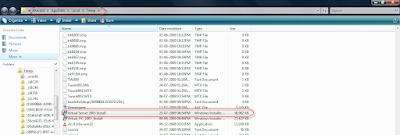
  • Dive in to you Temp folder,in my case it is /Aravind/AppData/Local/Temp/. You might need to enable "Show Hidden Files and Folder" from folder options

  • Copy this ”Virtual server 2005 install.msi” file from there to a safe location.
  • Download Orca MSI editor from this location and install it in your vista. Want to know more about what Orca, go to this KB Article
  • Open "Virtual server 2005 install.msi" in Orca
  • Go to Tools - > options - > find the “Database” tab and put a check mark in “Copy embedded streams during Save as”. Click ok to save the changes

  • There you find two panes, scroll the left pane to find “InstallExecuteSequence” and find “CaCheckOS” in right pane. Right click the entry and say “drop row”.

  • Find “InstallUISequence” from the left pane and find “CaCheckOS” in right pane. Right click the entry and say “drop row”.


  • Save all the changes, close Orca and now initiate the installation from this modified MSI file.
  • Choose a custom setup and disable the “Virtual server web application” option in that screen. Because this option will enable the installation of Web management console which depends on Windows authentication.


  • Here you go, complete the installation and say finish. Now we got the virtual server and related services in place without a web management console


  • Now we dont have a management console to create new VM or manage a VM, here comes Microsoft for our rescue
  • Microsoft provides a tool called VMRC plus which has a full management console, at least it provides 98% of all functionalities (it is mentioned in its help file) and it doesn’t require IIS or even internet explorer.

Here you go with your Virtual server 2005 running on top an Unsupported operating system

Related Links

Friday, May 15, 2009

Free EBook- Virtualization For dummies

Virtualization For Dummies, Sun and AMD Special Edition explains how virtualization works and how it can benefit an organization. The book covers the kinds of issues virtualization can address and how it addresses them.

Virtualization allows you, virtually and cost-effectively, to have two or more computers, running two or more completely different environments, on one piece of hardware. This technology promises to usher in an entirely new wave of hardware and software innovation. It is also designed to enable a generation of more energy-efficient computing
Download Virtualization For dummies

Wanna give a try to Sun's virtualization product then try Virtual Box, an open source technology which comes under GNU public license runs on Windows, Linux, Macintosh & openSolaris.It supports a large number of guest operating systems.

Sunday, October 5, 2008

How to compact Virtual hard drives?

When we develop in our virtualized dev environment, the virtual hard disk will expand dynamically in size. The problem is they don't compact automatically when we clean-up the VHD's. steps to reduce the VHD in size

1. Remove all unwanted files in temp locations or use CCleaner to remove all unwanted files.
2. Uninstall all programs which are unused in the dev environment.
3. Defrag the disk by using the system defragmenter.
4. select Capture ISO Image from CD menu and browse to the Virtual PC additions
directory
5. Location is %ProgramFiles%\Microsoft Virtual PC\Virtual Machine Additions by default.
6. Mount Virtual Disk Precompactor.iso. The precompactor will start automatically.
7. Once it's done , shut down the Virtual Hard disk.
8. Select the VPC from the Virtual PC console. Click on the settings button and select the Harddisk1 from the left pane.
9. Click over the "Virtual Disk Wizard" button and click next in the wizard.
10. select Edit existing disk, next choose the compact option - this can take a while to complete

For more info KB888760 How to prepare a Virtual Server 2005 virtual hard disk file to send to Microsoft Product Support Services